

Guide
Digitize a paper floor plan from a photo
Turn an old plan into an editable digital plan that keeps your layout as it is, ready for setting polarity and checking feng shui without redrawing from scratch.
What you need
- A floor plan for each floor: paper, printout, scan or screenshot all work.
- A flat, well-lit table, with no lamp shining straight onto the paper.
- The overall size of the house (width × depth) to cross-check if the plan has no dimensions.
- Knowing which edge of the plan the main door is on.
Steps
- Flatten the plan
Lay the sheet flat, weigh down the four corners and smooth out folds. A curled edge makes the walls in the photo curve too.
- Shoot straight on, one photo per floor
Hold the phone parallel to the paper, looking straight down, with all four corners in frame and the dimensions readable. Take a separate photo for each floor.
- Open Rebuild from a plan photo
On the home screen, tap “Digitize”, then “Rebuild from a plan photo”. Choose “Assistant builds”, then pick photos from your library or take new ones — up to 6 at a time.
- Confirm what the assistant read
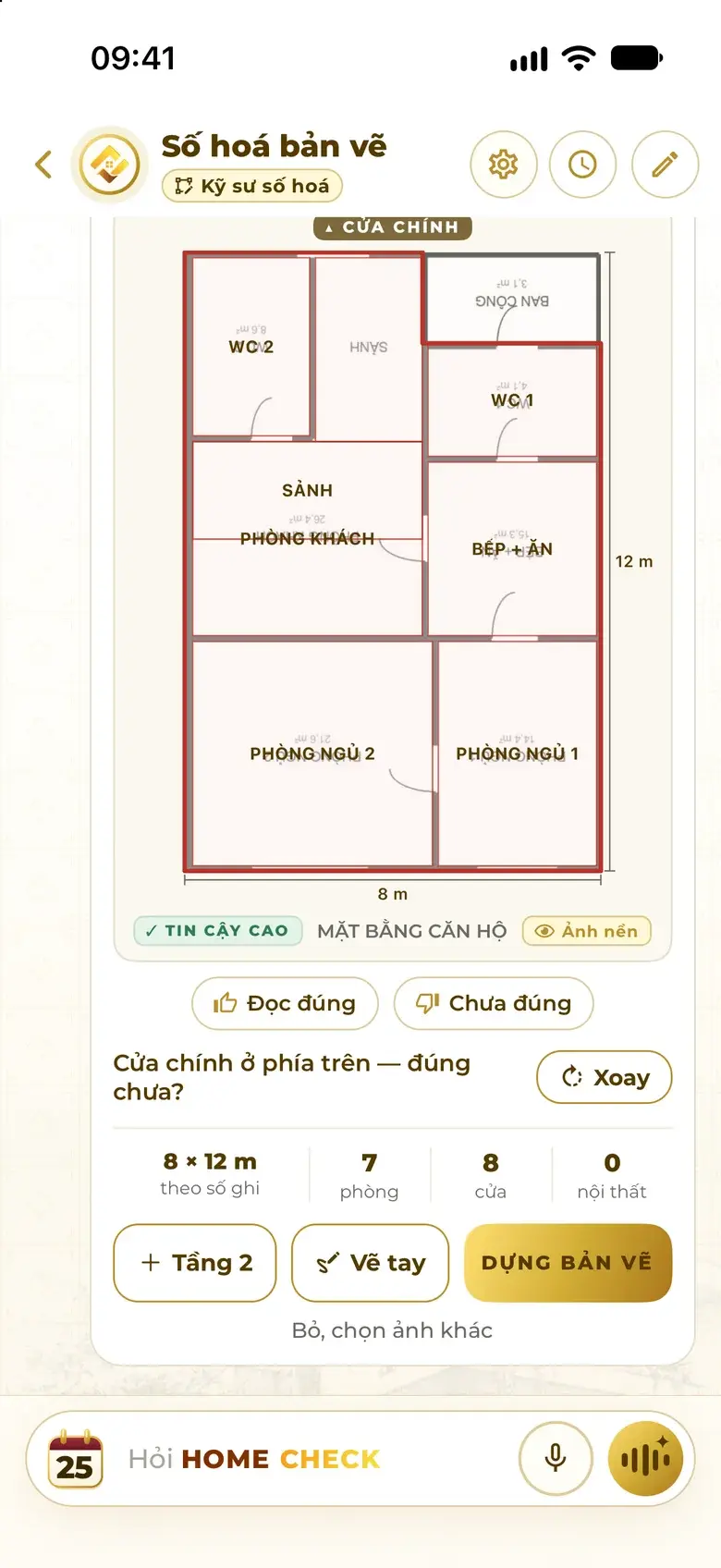
The assistant shows the outline, the number of rooms and doors, a confidence label, and asks which side the main door is on. If right, tap “Correct”; if the main door is the wrong way, tap “Rotate”; if something is off, tap “Not right” to say what.
- Build the plan
Tap “Build plan”: the editor opens the 2D plan with the main door turned to the top and the original photo underneath as a backdrop. For more floors, add them right on the result card.
- Check and adjust dimensions
Turn on “Photo” and drag the opacity to compare every wall line. Measure a few main sides on site; wherever it is off, adjust in the editor as with any plan.
- Set polarity and check feng shui
Enter the facing degree, set polarity, then run the feng shui check on the plan you just built.
Common mistakes
- Shooting at an angle, so the photo becomes a trapezoid and the walls are no longer square.
- Glare or a hand's shadow hiding wall lines and dimensions.
- Putting several floors in one photo.
- Using an illustration from the internet that is not to scale without checking the real dimensions.
- Skipping the main-door confirmation — the plan is rotated wrongly and polarity follows.
Do it in Home Check
- Tap “Digitize”, then “Rebuild from a plan photo”.
- Choose “Assistant builds” to have the assistant read the photo and build the plan, or “Draw it yourself” to set the scale and trace over the photo.
- The assistant builds exactly what the photo shows, without redesigning the layout; the original photo is kept with the project as a backdrop, and is not printed in the PDF or shown in 3D.
- You then have a full digital plan: edit walls, place furniture, view in 3D, set polarity, check feng shui and export a PDF.
Questions
Do hand-drawn plans or faint scans work?
Yes, as long as the wall lines and dimensions are readable. If the photo is too faint, the assistant will miss things; reshoot it more clearly or choose Draw it yourself to trace over it.
Will the assistant change my layout?
No. It builds exactly what the photo shows; the plan is only turned so the main door is at the top, so polarity is set correctly. To change the layout, edit it yourself or ask the assistant once the plan is built.
What if the plan has no dimensions?
Measure the overall size of the house on site and adjust it in the editor. Many illustrative plans are not to scale, so do not infer measurements from the drawing.
How do I handle a multi-storey house?
One photo per floor, up to 6 at a time; add floors right on the result card. All floors belong to the same house and should share one facing when setting polarity.
Do this for your own home in the app
Scan with your phone to get Home Check.
You are viewing this page inside another app. Tap ⋯ and choose “Open in browser” to get the app.
Markdown version of this page Index for machine readers (llms.txt)