

Digitize an existing home
Snap, press, scan — get the plan.
The home you live in becomes a dimensioned digital plan in minutes: from one photo, from a laser meter, or from a single LiDAR walk-through.
Scan with your phone to get Home Check.
You are viewing this page inside another app. Tap ⋯ and choose “Open in browser” to get the app.
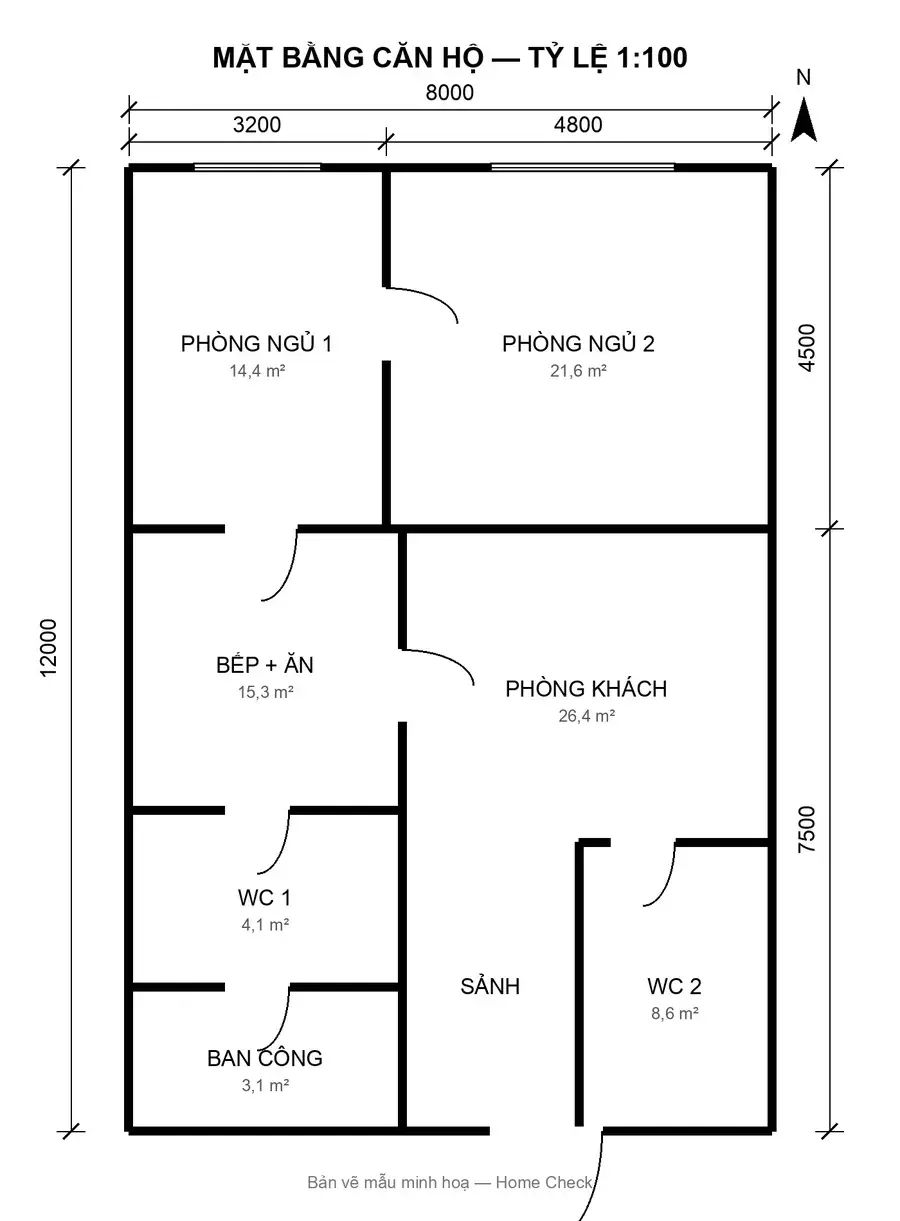
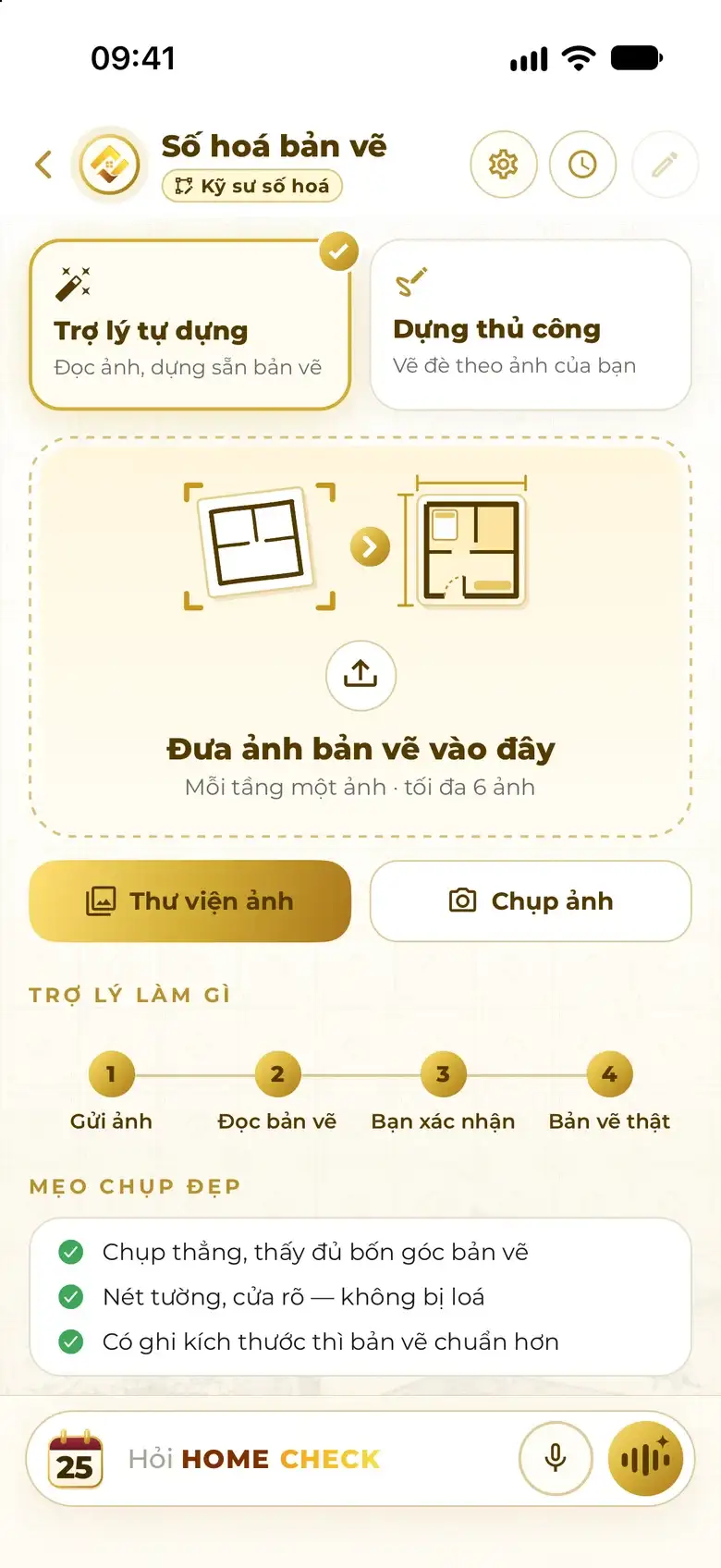
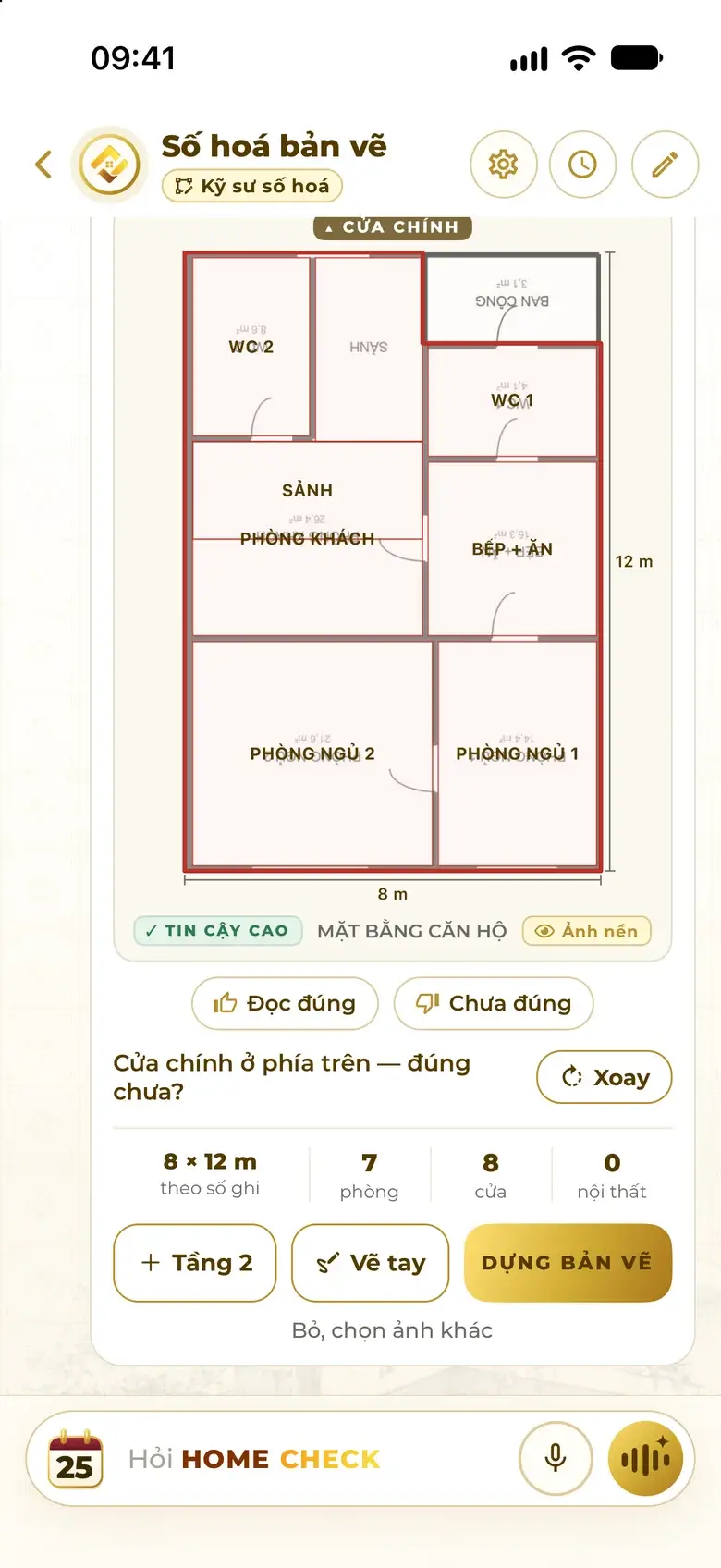
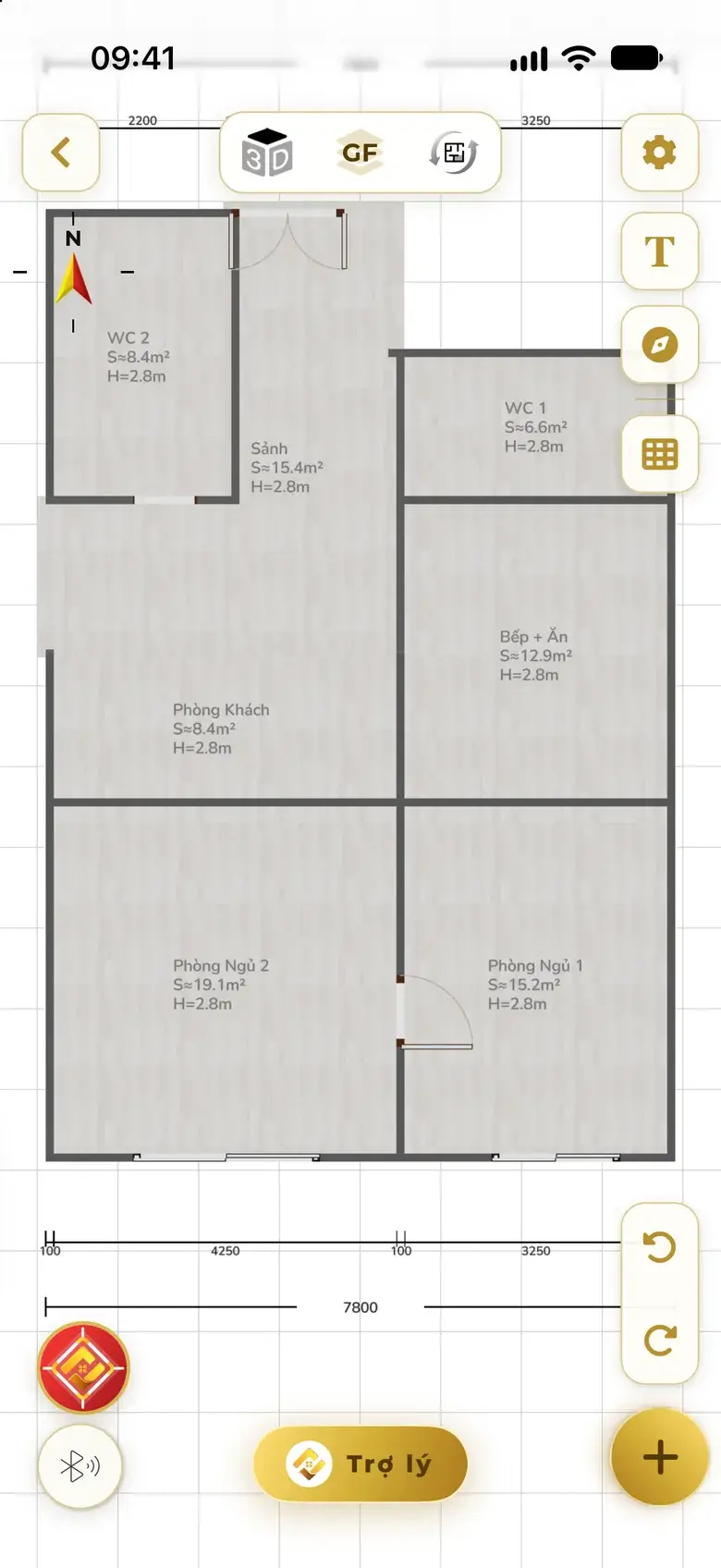
- Add the photo
- Assistant reads it
- Digital plan
Real app screens · rebuilt from a sample floor-plan photo
Short answer
3
ways to digitize
6
photos per batch · one per floor
1 walk
LiDAR scan of the whole home
Add it once — get it all
Add it once, get the whole home.
Snap, press or scan — add your home once and get a 2D plan, a 3D home, how to fix it and a 9-topic Feng Shui Analysis.
- Add
- Build 2D + 3D
- Show the fix
- 9-topic analysis
-
LiDAR scanWalk around once
-
Laser pressReadings into each wall
-
Plan photoSnap or upload
The stove faces the WC door — shall I move it to the solid wall?
Moved the stove to the solid wall. It no longer faces the WC door.
68 → 90 Feng Shui score · Illustrative example
9-topic Feng Shui Analysis
See the 9-topic analysis- Career & Status
- Health & Vitality
- Education & Exams
- Wealth & Savings
- Family Harmony
- Spiritual & Mental Wellbeing
- Family Members
- Timing Forecast
- Initial Remedies
Illustration A sample home for illustration; the score is an example, not the result of a real home.
Magic 1 · Photo → Plan
An old plan photo becomes an editable digital plan.
Paper plan, print, scan or screenshot — the Home Check Assistant reads the walls, doors, rooms and dimensions, then rebuilds it exactly as drawn.
-
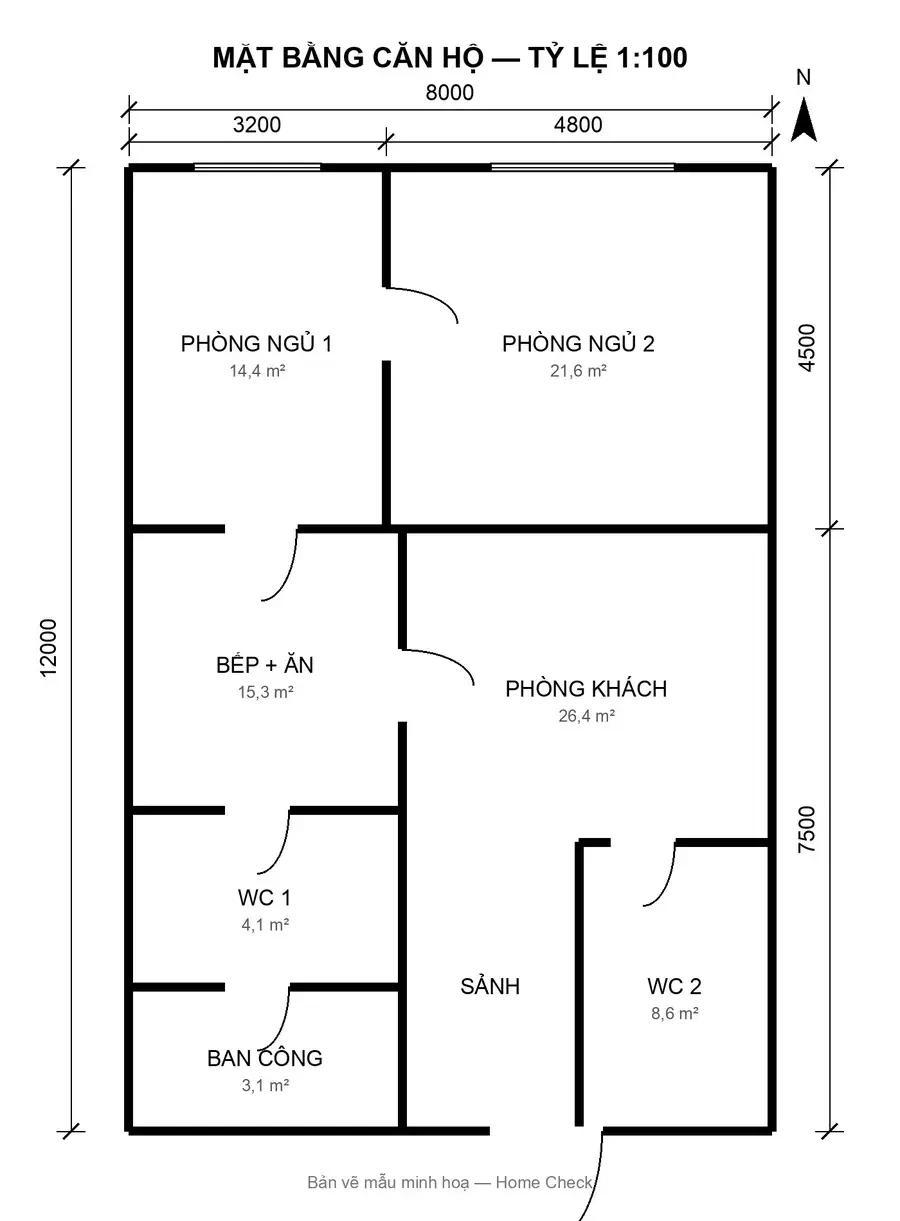
Snap or upload
One photo per floor, up to 6 photos at a time.
-
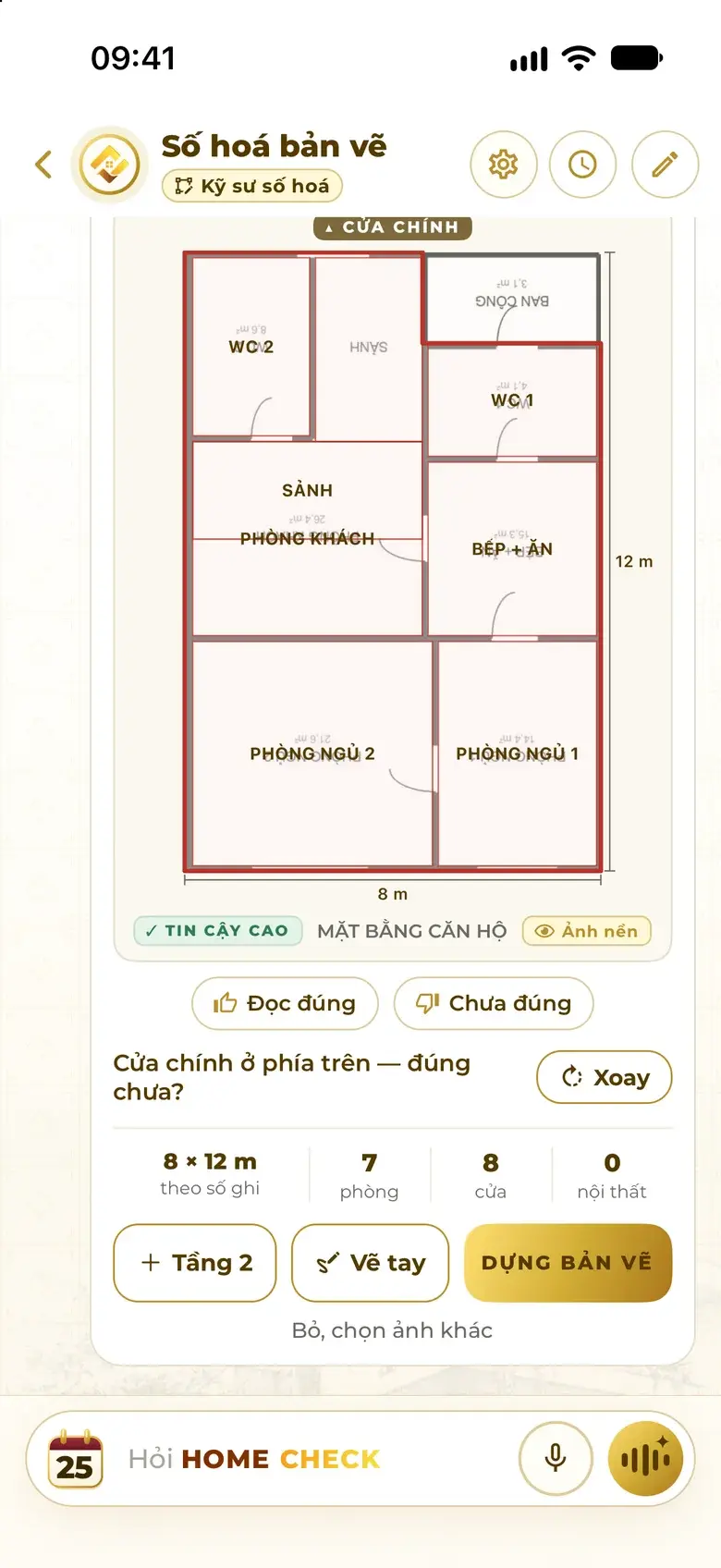
The assistant reads it
Finds the 8 × 12 m footprint from the written dimensions, 7 rooms, 8 doors — and asks about the main door to be sure.
-
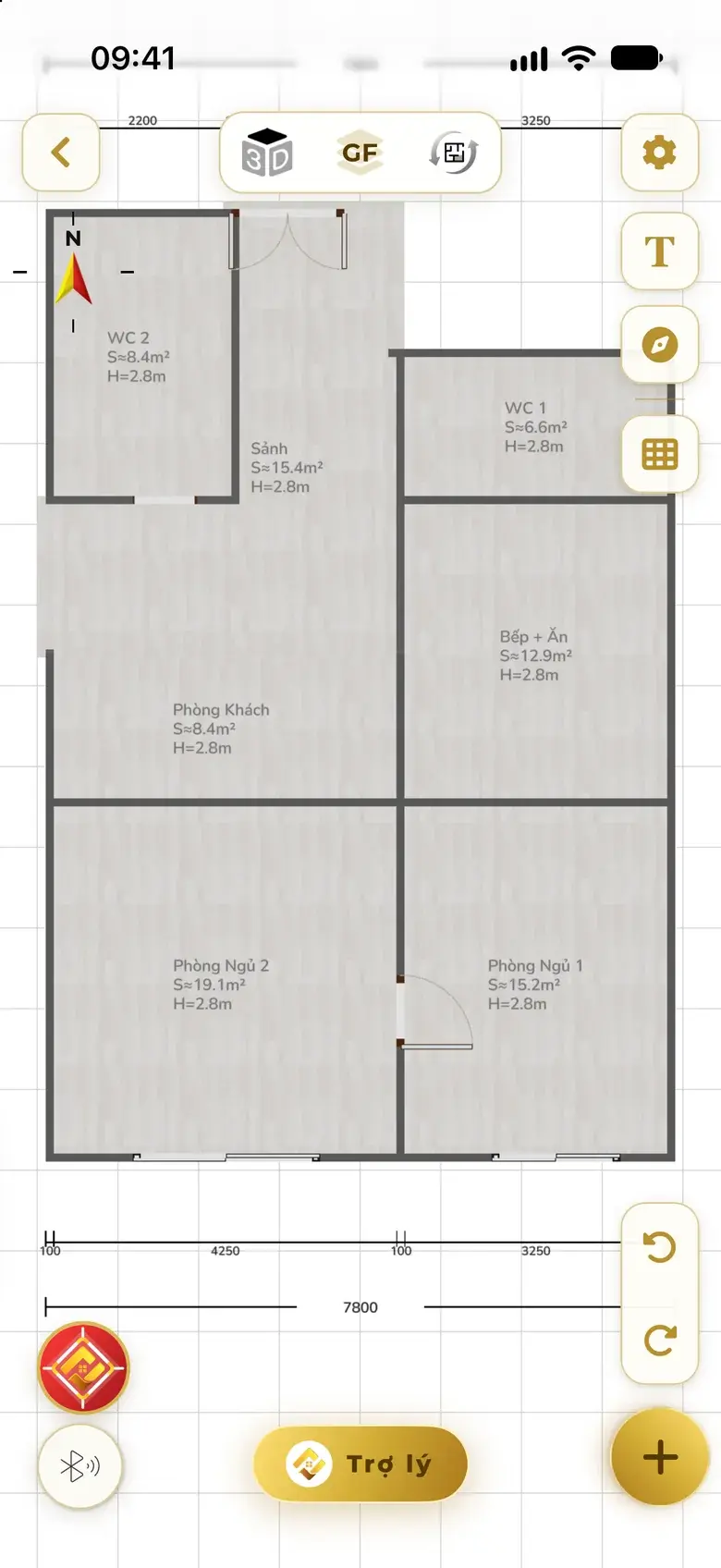
A digital plan, true to the photo
Walls, doors, windows, each room's area — keep editing like any plan.
Drag to compare
Original photo ↔ digital plan
The original photo sits right under the plan, turned so the main door faces up. Switch on “Photo” and fade it to check every wall line.
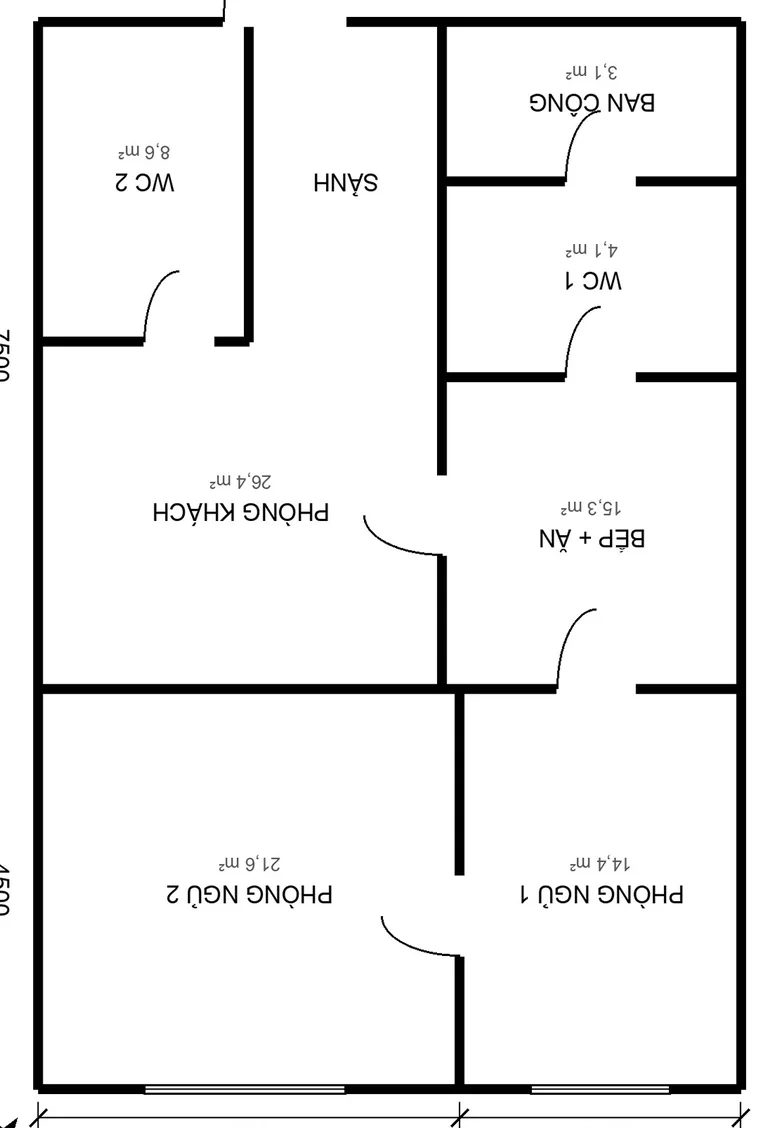
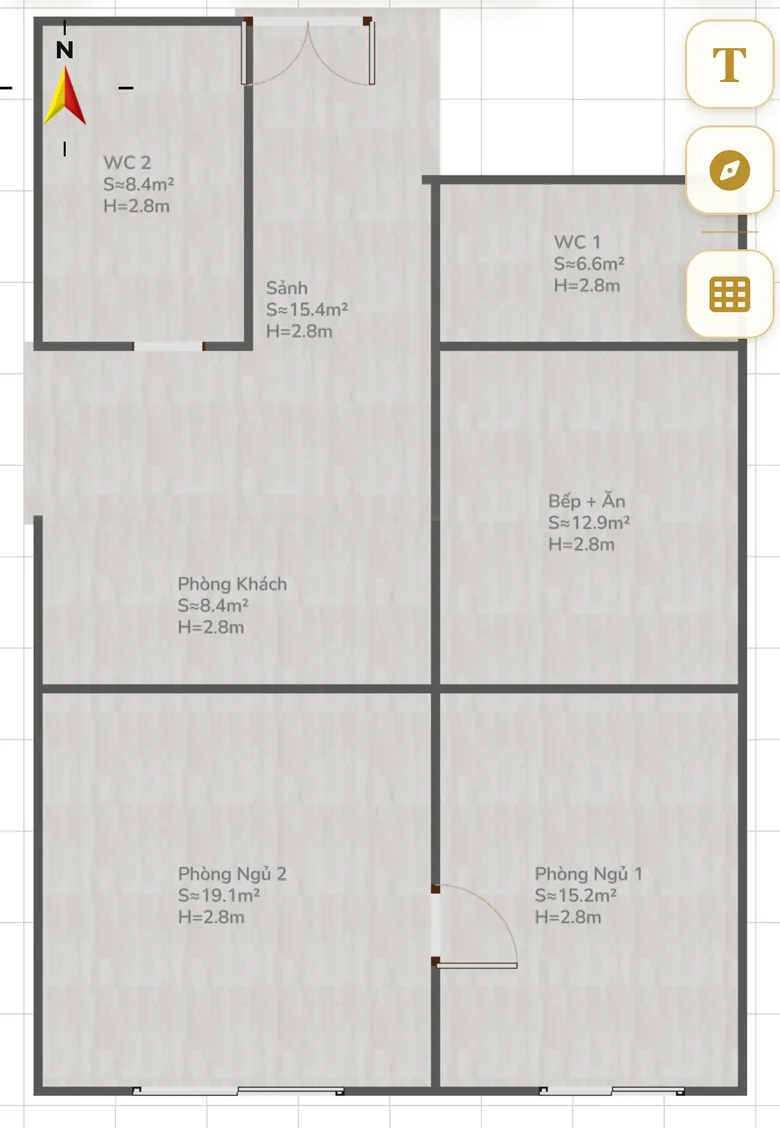
Real images from the app: a sample floor-plan photo and the plan rebuilt from it.
- You need
- A phone with a camera; a sharp photo of the walls — written dimensions make it more accurate.
- How long
- About a minute per photo.
- You get
- A 2D plan for each floor, with the original photo as a background for checking.
Tips for a good photo
- Shoot straight on, all four corners in frame
- Clear wall and door lines — no glare
- Written dimensions make the plan more accurate
Prefer to do it yourself? Choose “Draw it yourself” — set the scale and trace over the photo.
Magic 2 · Laser → Plan
Press measure — the number flies straight into the wall.
Connect a Bluetooth laser meter to the app. Place it at the corner of a wall and press measure: the length goes straight into the plan — no typing, no notes.
- Wall 1 5.20 m
- Wall 2 3.60 m
- Wall 3 1.80 m
- Wall 4 2.20 m
- Wall 5 3.40 m
- Wall 6 5.80 m
- You need
- A Bluetooth laser distance meter from the app's supported list; activate it once in the app.
- How long
- A few seconds per wall.
- You get
- A plan that matches every reading — length, thickness and height go straight into the selected wall, door or column.
Got a laser meter? Connect it in the app.
Get the appMagic 3 · LiDAR → Plan
Walk once around the home — the plan appears.
Hold an iPhone or iPad with a LiDAR sensor and walk slowly through the whole home in one pass. The app builds a 3D model you can turn around; tap 2D and you are in the floor plan — an angled wall stays angled.
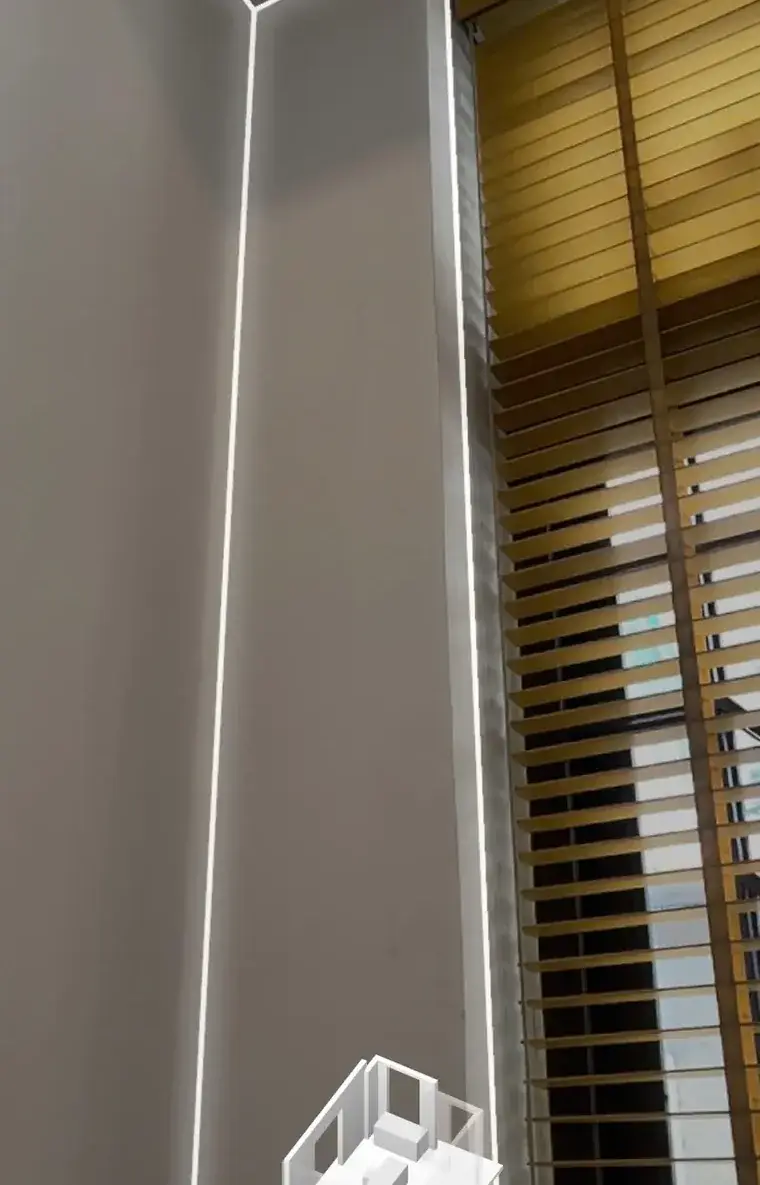
- Scan
- 3D model
- 2D plan
- You need
- iPhone Pro / Pro Max from iPhone 12 Pro onward, or an iPad Pro with a LiDAR sensor.
- How long
- One slow walk around the home.
- You get
- A 3D model to turn around and a 2D plan true to the real shape, open in the editor.
Scanning uses no tokens — tokens are used only when you save the plan.
No LiDAR on your phone? Use a photo or a laser meter.
And then
One digital plan opens up the whole home.
Every method ends in the same digital plan in the editor — carry on right away, nothing to redraw.
-
Digital plan
Adjust walls, add doors, place furniture.
-
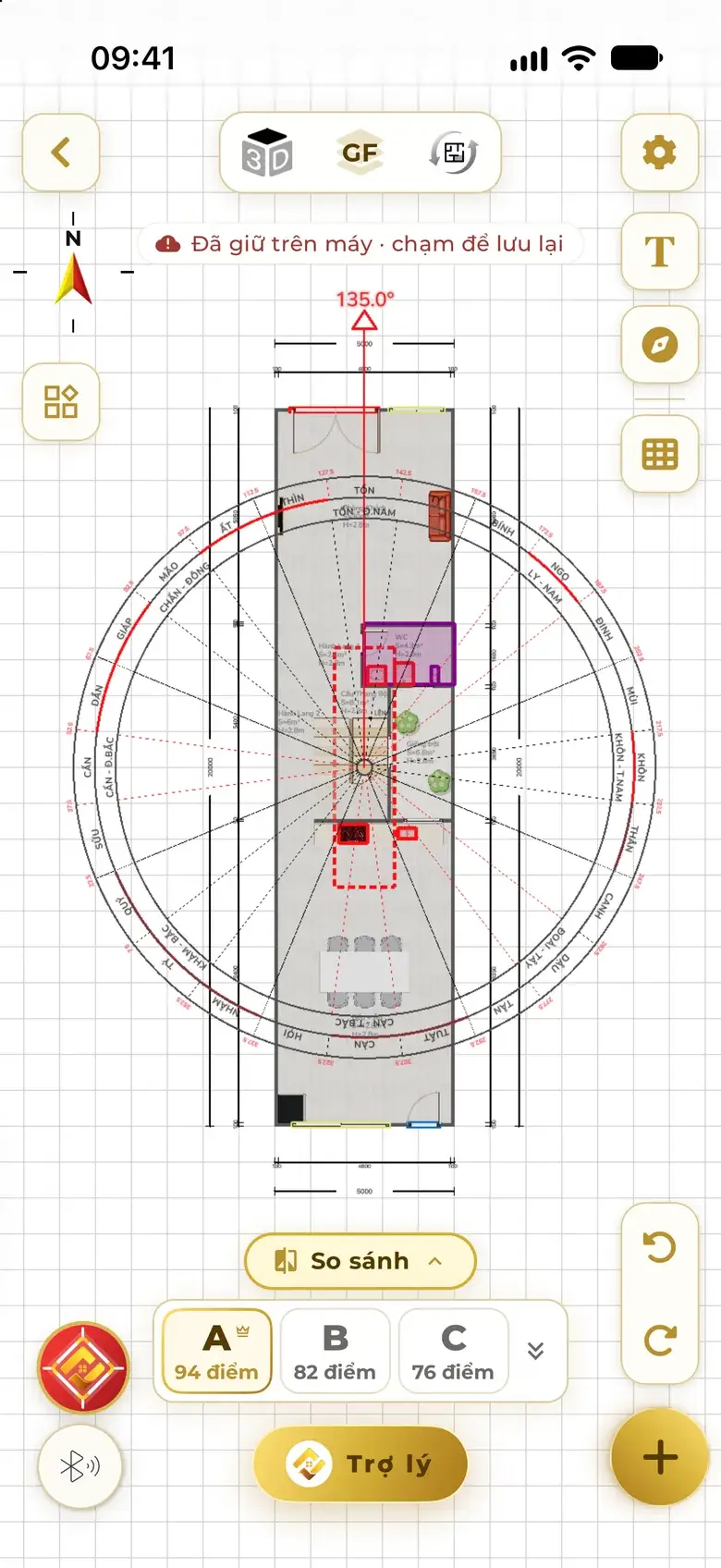
Feng Shui Check
Orient by the main door's exact degree, every issue coloured.
-
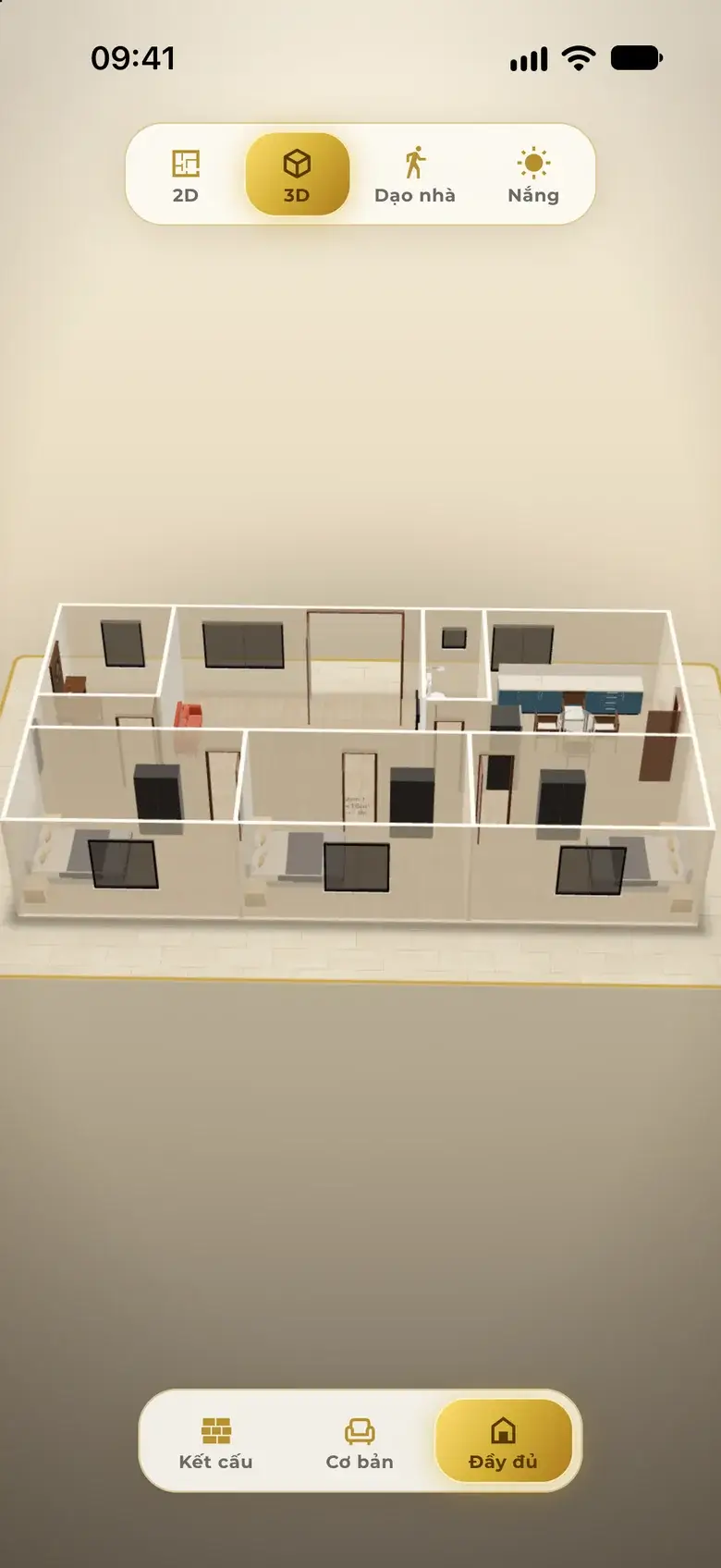
3D tour
Turn, zoom and walk through the home.
-
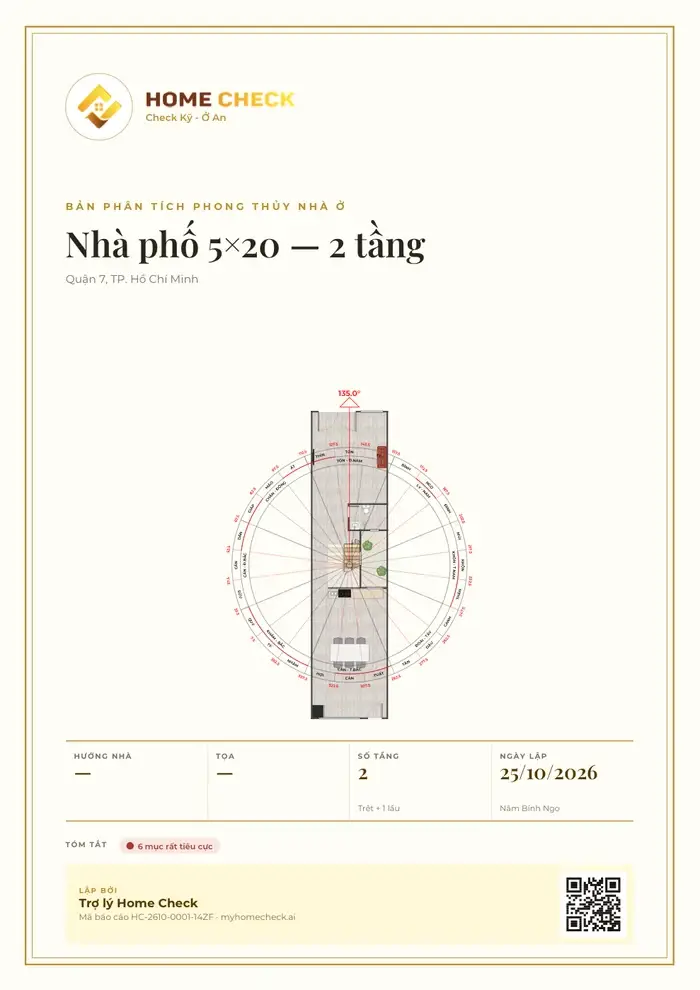
PDF report
An analysis with cover, compass and plan.
Then tell the assistant
“Check the Feng Shui too.”
Real app screens from sample projects.
Which way
What you need, how long, when it fits.
No LiDAR? You can still digitize with a plan photo or a laser meter.
| Way | Device | How long | Suits |
|---|---|---|---|
| Photo → Plan | A phone with a camera | About a minute per photo | You still have a paper plan, print, scan or screenshot |
| Laser → Plan | A supported Bluetooth laser meter | A few seconds per wall | You need an exact reading for every side |
| LiDAR → Plan | iPhone Pro / iPad Pro with LiDAR | One walk around the home | No plan at hand, you want it fast, the home has angled walls |
LiDAR scanning needs an iPhone or iPad with a LiDAR sensor.
Steps in the app
Step by step for each way
Pick a way and follow a few steps — the digital plan opens right in the editor.
Build a digital plan from a plan photo
-
Open Digitize
On the home screen, tap “Digitize”, then “Rebuild from a plan photo”.
-
Add the photo
Choose Photo library or Take photo — one photo per floor, up to 6 photos.
-
Confirm what the assistant read
Check the dimensions, rooms, doors and main door; tap “Correct”, or “Rotate” if the main door faces the wrong way.
-
Build the plan
Tap “Build plan” — the editor opens the 2D plan with the original photo as a background for checking.
Draw a floor plan with a Bluetooth laser meter
-
Open Digitize → Laser meter
On the home screen, tap “Digitize”, then “Bluetooth laser meter”.
-
Connect the meter
Turn on Bluetooth and the meter, tap the Bluetooth button in the editor and pick the meter; activate it on first use.
-
Measure wall by wall
Place the meter at the corner of a wall and press measure — the length goes straight into the wall being drawn; move on to the next wall.
Scan a home with LiDAR into a floor plan
-
Open Digitize → LiDAR scan
On the home screen, tap “Digitize”, then “LiDAR scan”.
-
Walk slowly through the whole home
Sweep slowly along the walls, in good light, without covering the camera, in one continuous pass.
-
View 3D, tap 2D
Turn the scanned 3D model to check it, then tap 2D to go straight to the floor plan in the editor.
-
Save the plan
Happy with it? Save it to a project — tokens are used only at this step.
Quick questions
Questions about digitizing
What is plan digitizing in Home Check?
It brings the home you already have into a digital plan in the app: from a plan photo, a Bluetooth laser meter or a single LiDAR scan. The plan has walls, doors and rooms at the right size, and you can edit it, view it in 3D and run a Feng Shui Check.
Can I use an old paper plan or a scan?
Yes, as long as the wall lines and dimensions are readable. Shoot straight on, all four corners in frame, in good light, one photo per floor. After reading, the assistant asks about the main door, and the original photo stays as a background for checking.
Does the assistant keep my plan as it is?
Yes. It rebuilds exactly what the photo shows and does not redesign the layout. The plan is turned so the main door faces up, so orientation comes out right; anything off can be fixed in the editor, or tap “Not right” to send feedback.
My phone has no LiDAR — what then?
LiDAR scanning needs an iPhone Pro / Pro Max from iPhone 12 Pro onward or an iPad Pro with a LiDAR sensor. Any other phone can still digitize with a plan photo or a Bluetooth laser meter.
Does a LiDAR scan use tokens?
Scanning uses no tokens. Tokens are used only when you save the plan to a project, just like a regular plan — you pay for what you use.
Which laser meter can I use?
A Bluetooth laser distance meter from the app's supported list. In the editor, tap the Bluetooth button to find the meter, activate it on first use, then press measure on the meter — the reading goes straight into the plan.
What about a home with several floors?
With photos: one photo per floor, up to 6 at a time, and add floors right on the result card. With LiDAR: if the area is too large, scan one floor at a time, slowly and in one pass.
What do I do after digitizing?
The digital plan opens in the editor: adjust walls, add doors, place furniture, view 3D. Then tell the assistant “Check the Feng Shui too” to orient the plan, check the whole home and export a report.
Knowledge base
Know the roots, use them well
Every concept has its own page: a short definition, the Chinese characters, and how Home Check uses it.
Digitize your home today
Photo, laser or LiDAR — in minutes you have a digital plan to edit, view in 3D and run a Feng Shui Check.
Scan with your phone to get Home Check.
You are viewing this page inside another app. Tap ⋯ and choose “Open in browser” to get the app.
Check well, live well