

Set polarity from the front door's degrees, check the whole home, colour every position.
Editor
From walls to renders.
Draw in 2D, view in 3D, create renders — all on one plan.
Toolkit
Every line a home needs.
Draw by hand in the editor, or tell the assistant — it makes the change right on the plan.
Walls
Straight or freeform walls, angled walls, each side typed to the exact metre; change the wall type at any time.
- Straight
- Freeform
- Angled
- Change wall type
Or tell the assistant Make the top wall of the living room glass
Doors & windows
Place doors and windows in a wall and choose which way each door swings.
- Door
- Window
- Door swing
Or tell the assistant Add a window on the bottom wall of bedroom 1
Columns & axis grid
Set up an axis grid, then place columns on the intersections — square or round.
- Axis grid
- Square column
- Round column
Foundations & tie beams
Manage footings and tie beams right under the column grid, and show them when you need to.
- Foundations
- Tie beams
Roof
Select a room and add a roof; show or hide it to look inside.
- Flat
- Flat with parapet
- Thai roof
- Japanese roof
- Metal sheet roof
- Glass skylight
- Indochine roof
Fences & outdoors
A fence around the plot, a gate, a yard, a pond — outdoor works drawn on the same plan.
- Solid block fence
- Baluster fence
- Wooden fence
- Fired brick fence
- Concrete vase-baluster fence
Furniture
Add pieces from the library, move, rotate, change style, ungroup or duplicate.
- Add
- Move
- Rotate
- Style
- Ungroup
- Duplicate
Or tell the assistant Rotate the bed in bedroom 1 by 90 degrees
Notes & ruler
Add dimensions, measure lengths and angles, write text, callouts or sketch right on the plan.
- Ruler
- Length & angle
- Text
- Callout
- Freehand
Every action has Undo and Redo; projects can be backed up and restored from the Projects screen.
View in 3D
The plan rises into a model.
Drag the picture or use the slider to spin it; peel off floors to look inside.
Show up to
In the app, the 3D model has its openings, furniture, roof and materials; spin and pinch to zoom.
Do this for your own home in the app
Get the appHouse tour
Walk through before you build.
Say “Give me a house tour” — the camera moves through each room in 3D, roof hidden, floors cut open to look inside.
House tour
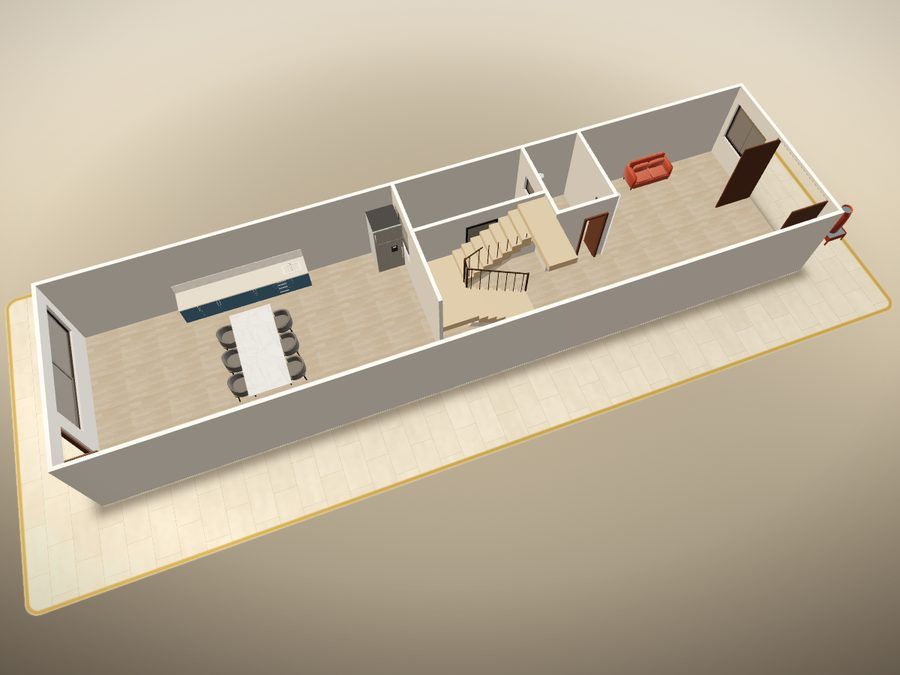
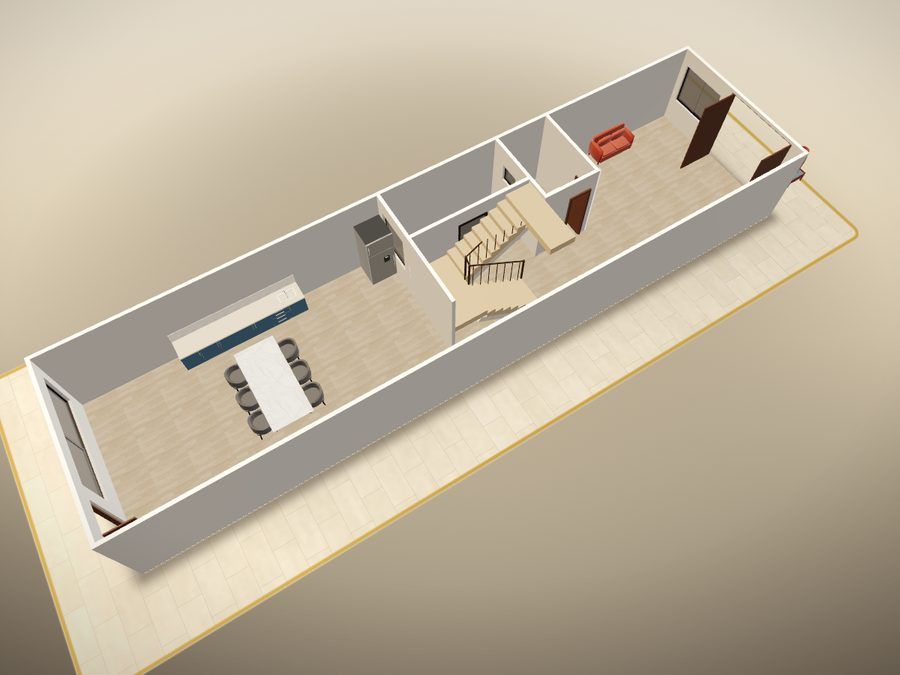
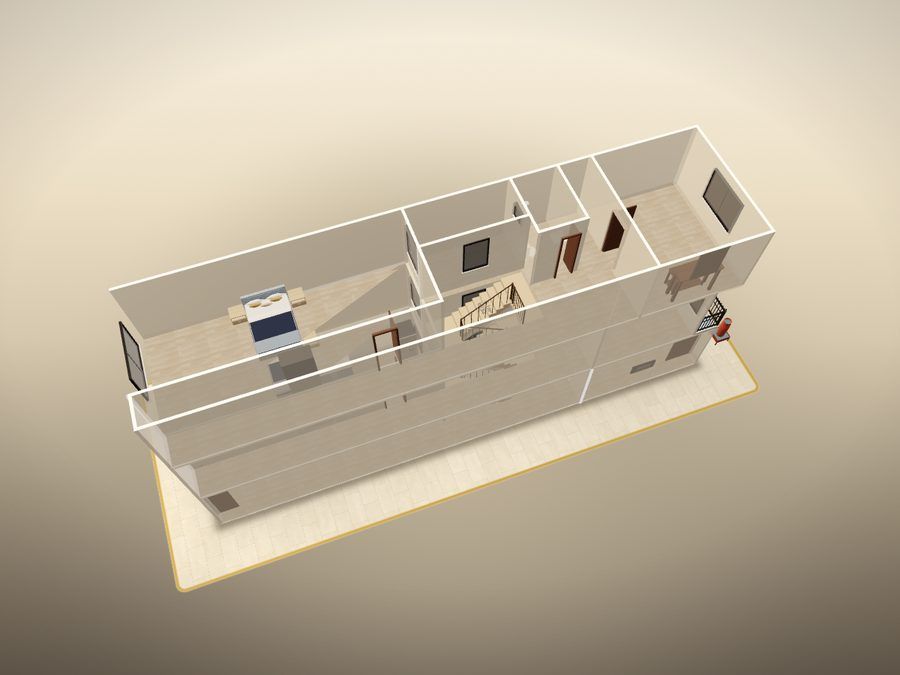
Sunlight through the day
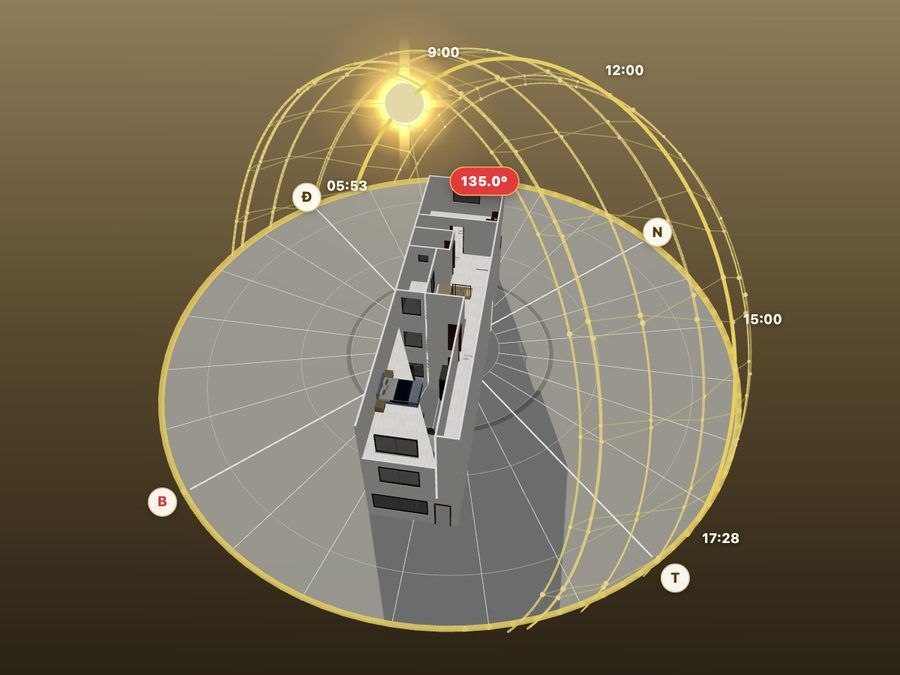
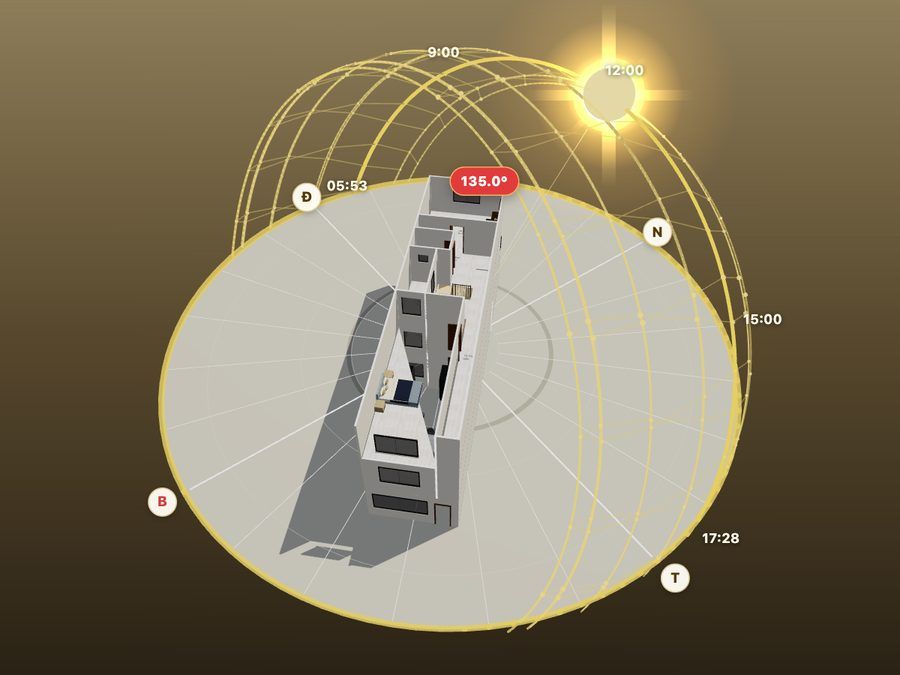
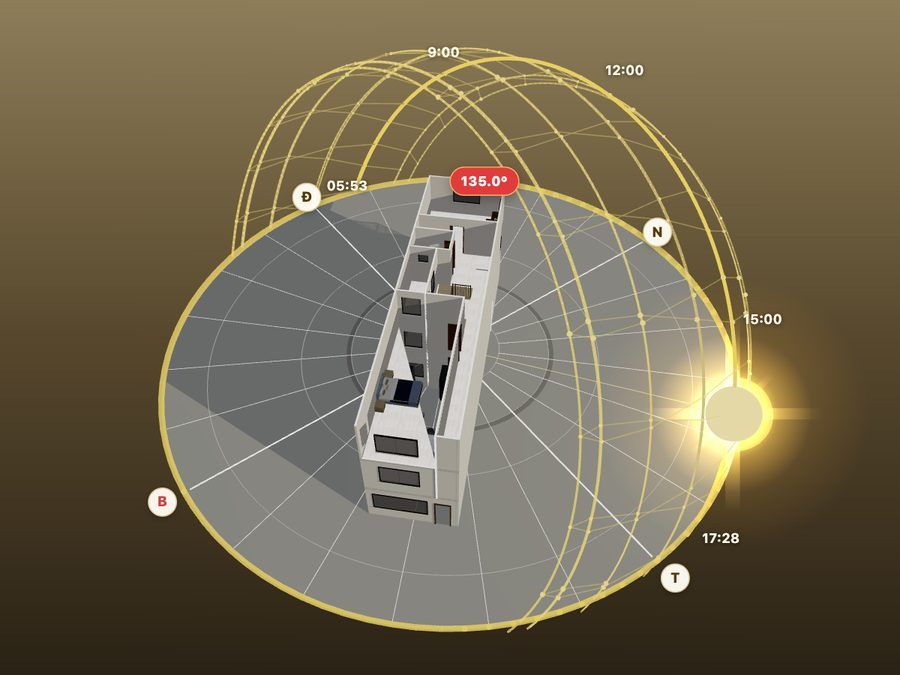
Illustration from real data Captured from the app's 3D viewer: the 5 × 20 m, 3-floor sample house.
Render
One photo, a new space.
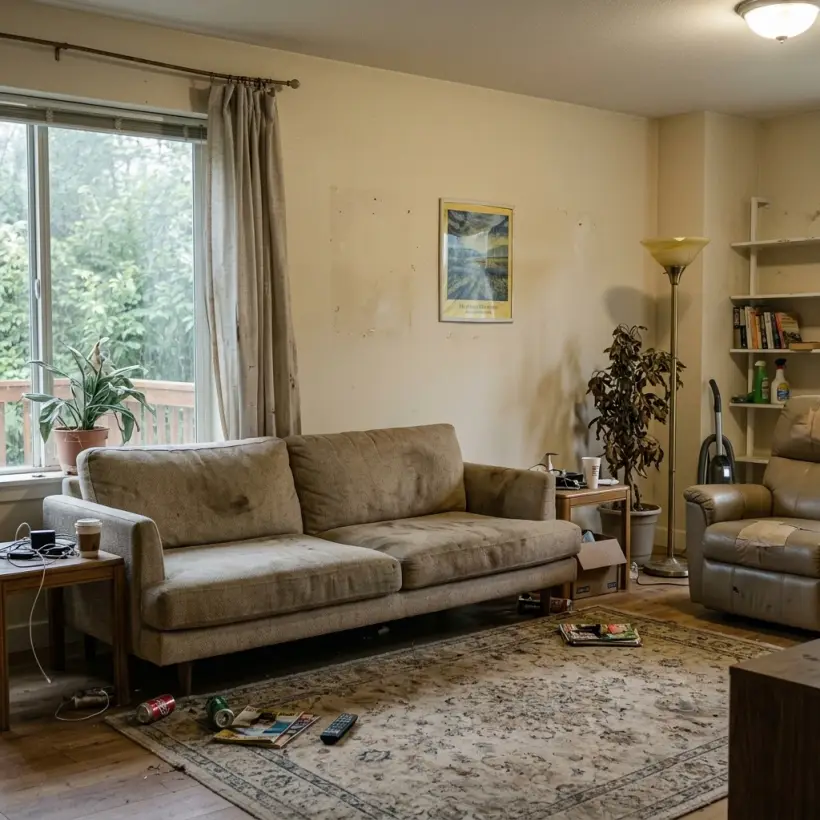
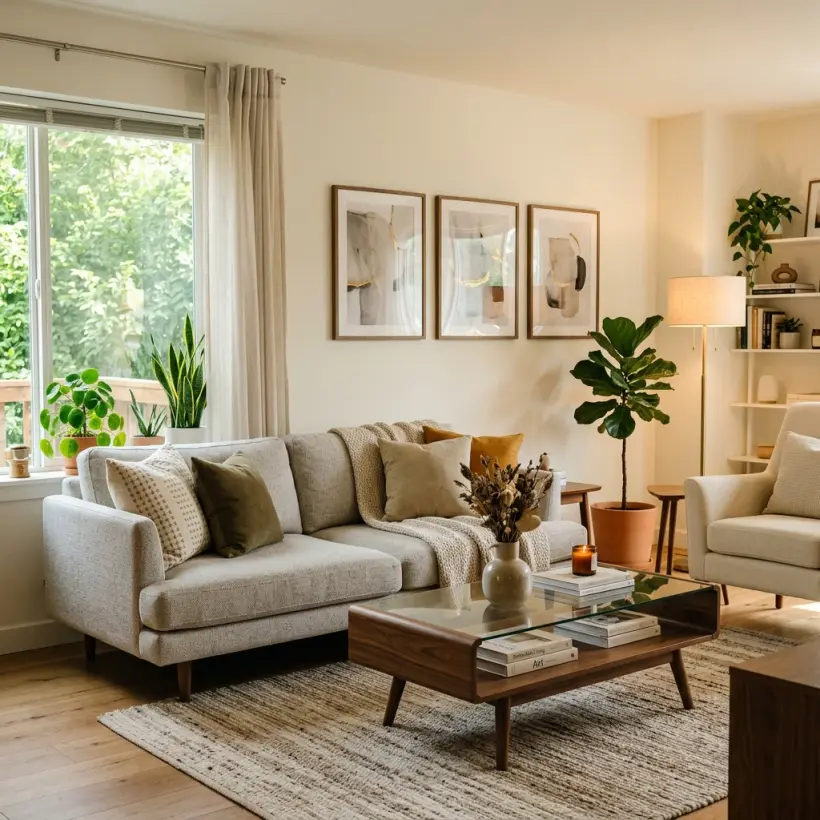
Photograph a room, a yard or an altar space and pick a style — Home Check keeps the room's frame and refreshes it your way. Drag to compare.
Living room, bedroom, kitchen, bathroom, office, kids room, tea room, courtyard.
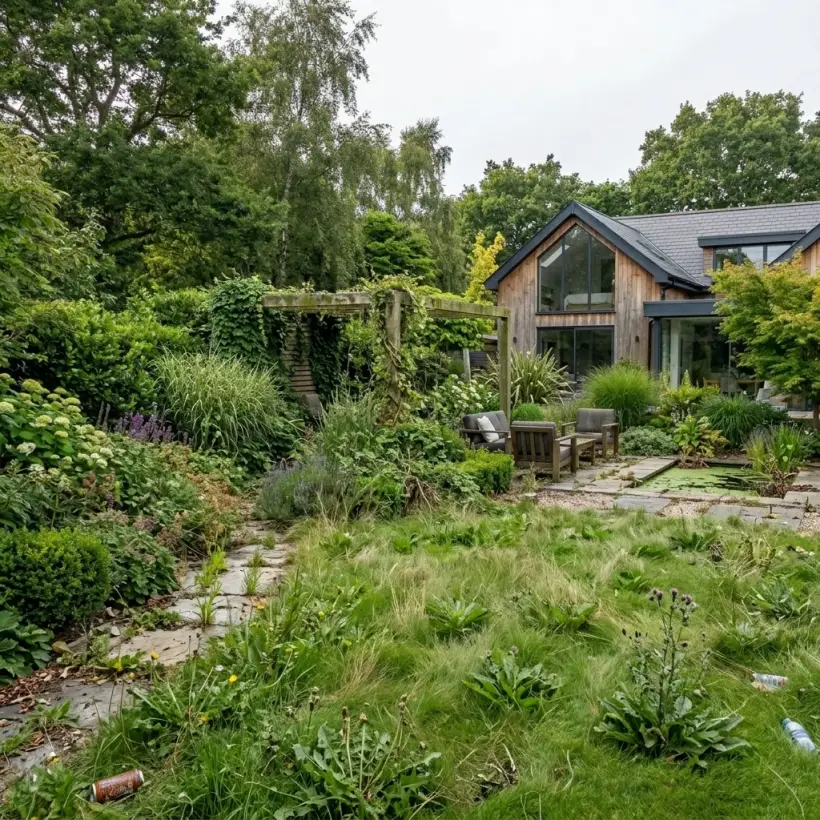
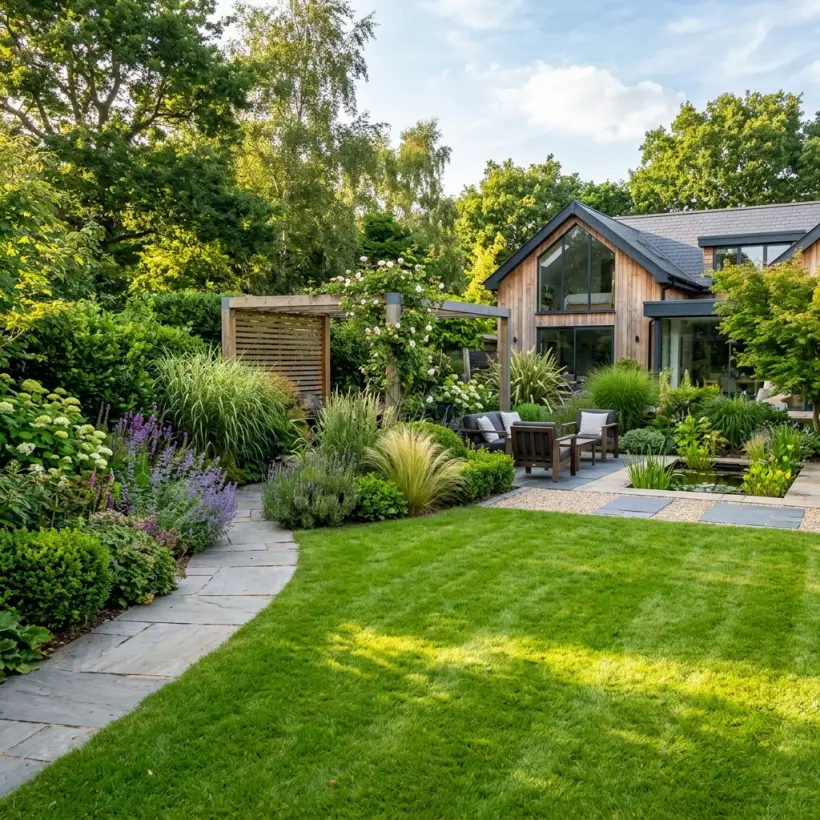
Garden, pathway, front yard, backyard, balcony.
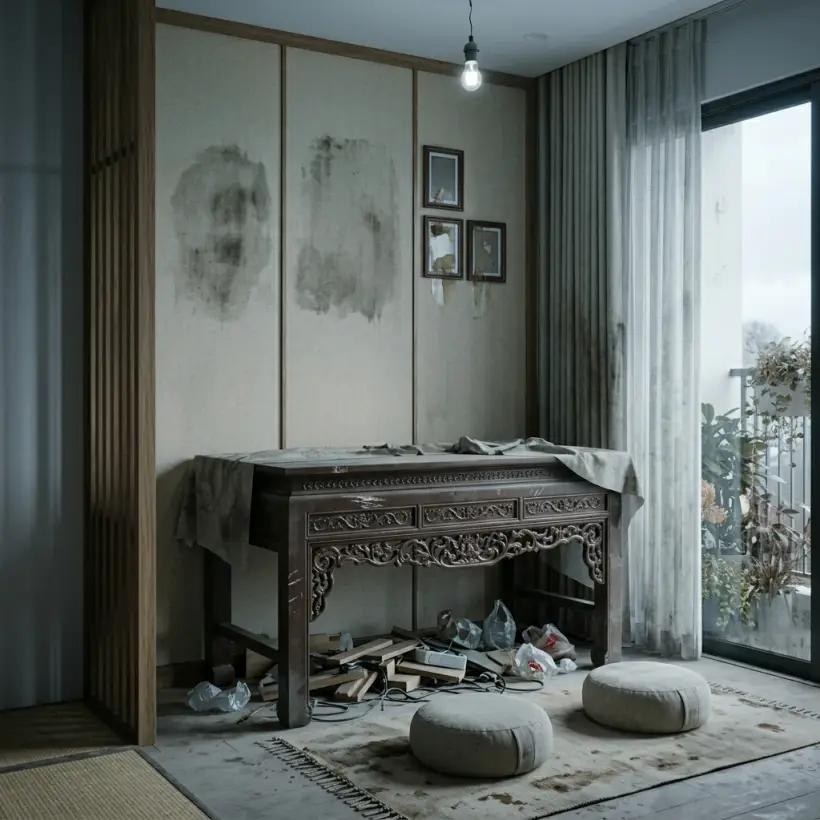
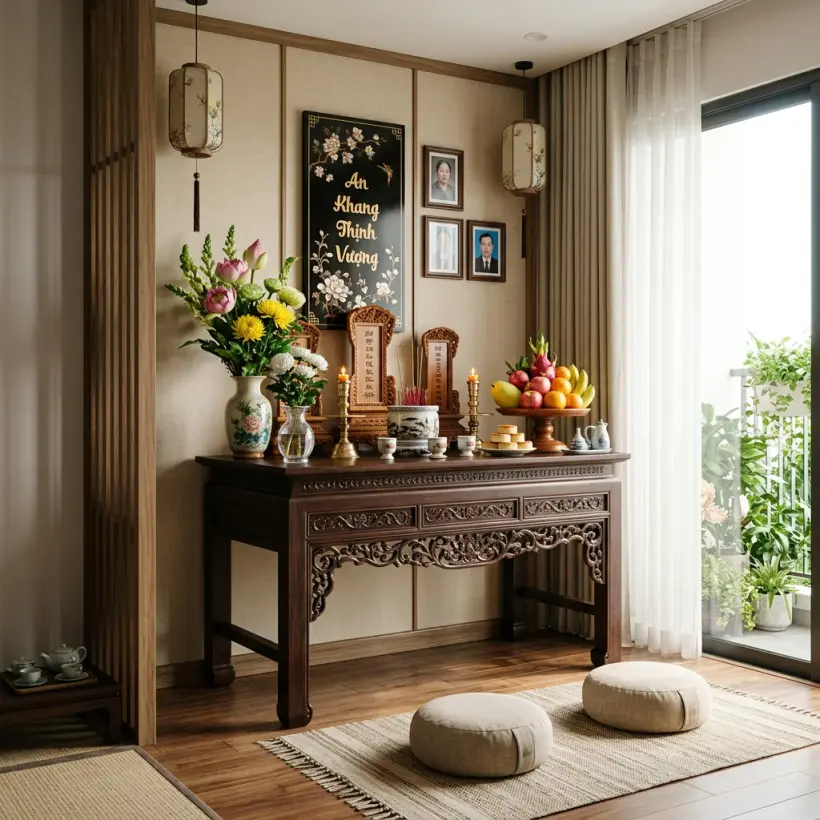
Ancestor worship, Buddhist, Catholic, God of Wealth.
Illustration Sample photo pair that ships in the app's Render screen.
Pick a style
-

-
-

-
-

Indochine, Japanese, Contemporary, Luxe and more — with a colour palette to match — are waiting in the app.
Approach
Keep layout
- Walls, doors and main furniture stay put
- Fresh materials, colors and decor
Creative
- Furniture rearranged with a fresh eye
- Keeps the shape of the room
Do this for your own home in the app
Get the appKeep using the plan
One plan for the whole project.
The plan in the editor is the source for everything that follows.
Pick floors and export an A3 plan with polarity set, ready to print or send.
No plan yet? One sentence gives three options that open straight here.
Plan photo, LiDAR or laser — bring the home you live in into the editor.
Steps in the app
Step by step in the app
View an existing plan in 3D, or create a render from one photo.
View a plan in 3D and take a house tour
-
Open the plan
Tap “Projects”, then tap a project in the list to open its floor plan.
-
Tap “View 3D”
The 3D model is built from the plan itself; spin and zoom to see every corner.
-
Take a house tour
Tap “Assistant” and say “Give me a house tour” — the camera walks through each room.
Create a render from a photo of a room
-
Open Render
On the home screen, tap “Render” and choose Interior, Exterior or Altar space.
-
Photograph the space
Take a photo or pick one from your library: good light, wide angle, phone held level.
-
Choose type, style, colours
Choose the space type, a style, a colour palette and an approach: Keep layout or Creative.
-
Create the render
Tap “Create render”, then drag to compare before and after; it is kept in Render history on your device.
Quick questions
Questions about the editor
What can the Home Check editor draw?
Straight, freeform and angled walls; doors and windows; columns on an axis grid; foundations and tie beams; roofs; fences and outdoor works such as gates, yards and ponds; furniture from the library; notes and dimensions. Every action has Undo and Redo.
Where does the 3D model come from?
From the 2D plan itself. Tap “View 3D” and the model is built straight from the plan you have, with nothing to redraw; edit the plan, look at 3D again and the change is there.
Will the render keep my actual room?
There are two approaches. Keep layout: walls, doors and main furniture stay put; only materials, colours and decor are refreshed. Creative: the furniture is freely rearranged, but the shape of the room is kept.
Which spaces can I render?
Interiors (living room, bedroom, kitchen, bathroom, office, kids room, tea room, courtyard), exteriors (garden, pathway, front yard, backyard, balcony) and altar spaces (ancestor worship, Buddhist, Catholic, God of Wealth).
Where are my renders saved?
In Render history, saved on your device. From there you can open any render again or delete it.
How do I keep my plans safe?
On the Projects screen, tap “Back up and restore” to back up your plan projects and restore them when needed.
Knowledge base
Know the roots, use them well
Every concept has its own page: a short definition, the Chinese characters, and how Home Check uses it.
Draw, view in 3D and render in the app
From bare walls to the finished render — all on one plan.
Scan with your phone to get Home Check.
You are viewing this page inside another app. Tap ⋯ and choose “Open in browser” to get the app.
Check well, live well