

Guide
Measure a home with a Bluetooth laser meter
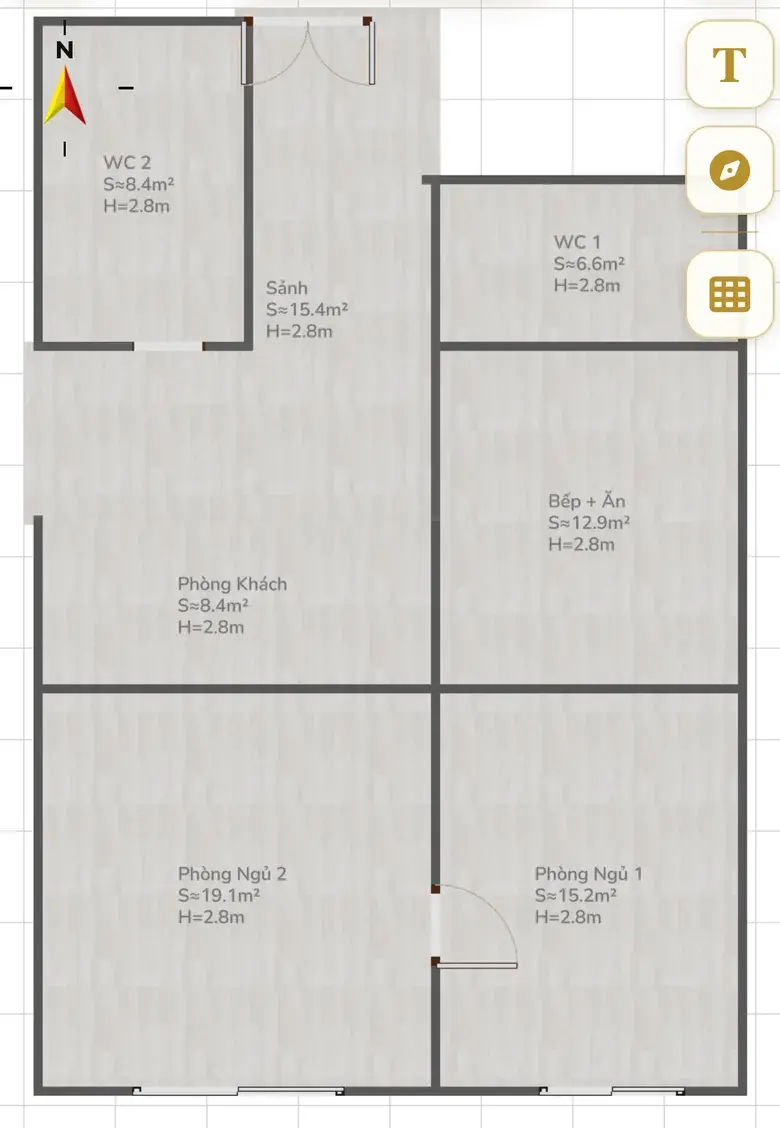
A floor plan that matches every real measurement of the home you live in, ready to edit, view in 3D, set polarity and check feng shui — without writing down and retyping every number.
What you need
- A Bluetooth laser distance meter on Home Check's list of supported devices (see Activate device in the app).
- Bluetooth and Location (GPS) turned on — the app needs location permission to find a meter nearby.
- A rough sketch of the rooms to plan the order; a tape measure for spots the laser cannot reach.
- Every room door open, and items moved away from the foot of the walls so the beam hits the wall itself.
Steps
- Activate the meter
Open the menu, choose “Activate device”, bring the meter close to the phone and tap “Scan Devices”. Pick the meter that appears and tap “Activate” — once per meter.
- Open the laser editor
On the home screen, tap “Digitize”, then “Bluetooth laser meter”. In the editor, tap the Bluetooth button and choose the activated meter.
- Measure the outer walls first
Start at the corner by the main door and go round the house in one direction. Put the base of the meter against the corner, aim the beam square to the opposite corner and press measure: the length goes into the wall you are drawing. Carry on until the loop is closed.
- Add the partitions
Measure each partition the same way. For the selected wall, choose what to capture before you press measure: length, thickness or height.
- Place doors, windows and columns
Select a door or window, measure from the wall corner to the edge of the opening, then the width, height and height above the floor; for columns, measure two sides. Each reading goes into the property you selected.
- Check and save
Compare the totals of opposite sides of the house; if they differ a lot, re-measure the doubtful side. Mark the main door and save the plan to a project.
- Set polarity and check feng shui
Enter the facing degree measured at the main door, set polarity and run the feng shui check on the plan you just measured.
Common mistakes
- Location (GPS) is off, so the phone cannot find the meter.
- Holding the meter at an angle, so the beam hits the wall diagonally — the reading is longer than reality.
- Measuring to a cabinet, curtain or furniture against the wall instead of the wall itself.
- Aiming at glass or a mirror — the beam passes through or bounces back and the reading is wrong.
- Measuring room by room at random without closing the outer loop first — the overall size drifts.
- Forgetting to select the right wall or the right value (length, thickness, height) before pressing measure.
Do it in Home Check
- Tap “Digitize”, then “Bluetooth laser meter” to open the laser editor.
- Home Check receives readings over Bluetooth and puts them straight into the selected wall, door or column — length, thickness, width, height, height above floor: draw as you measure.
- Once drawn, the editor calculates each room's area; view in 3D, set polarity, check feng shui and export a PDF on the same plan.
- For a new meter, go to “Activate device” to scan for and activate it.
Questions
Which laser meters work?
Bluetooth laser distance meters on Home Check's list of supported devices; the brands and models are listed under Activate device in the app. Without a Bluetooth meter, you can still draw by hand and type dimensions in the editor.
Why can't my phone find the meter?
Usually Bluetooth or Location (GPS) is off, or the app lacks permission. Turn both on, bring the meter close to the phone and tap “Scan Devices” again.
How does laser measuring differ from digitizing a photo?
A laser gives the real length of each side, suited to an as-built plan that must match reality. A plan photo is quicker when you still have the paper plan; LiDAR is quick when you want the whole home in one loop. All three produce the same kind of digital plan.
How do I measure a multi-storey house?
Measure one floor at a time in the same project, starting from the ground floor. Keep a shared reference corner — usually the main-door corner or the stair corner — so the floors line up.
Do this for your own home in the app
Scan with your phone to get Home Check.
You are viewing this page inside another app. Tap ⋯ and choose “Open in browser” to get the app.
Markdown version of this page Index for machine readers (llms.txt)