

Guide
LiDAR-scan a whole home into a floor plan
Get an as-built plan in the true shape of the home — angled walls included — without a tape measure or paper plan, ready to edit, view in 3D and check for feng shui.
What you need
- iPhone Pro / Pro Max from the 12 Pro onwards, or an iPad Pro with a LiDAR sensor; fully charged.
- A well-lit home: lights on, curtains open; every room door open so you can walk through in one pass.
- Clear walkways; move things away from the foot of the walls where you can.
- Know the main door and the facing degree (measured on the Measure screen) for setting polarity after the scan.
Steps
- Open LiDAR scan
On the home screen, tap “Digitize”, then “LiDAR scan”. A device without a LiDAR sensor is told right away and offered another way to digitize.
- Start at the main door
Stand inside next to the main door, hold the phone upright at chest height with the camera facing the wall. Wait until the scan picks up the floor and the wall in front of you.
- Walk slowly, sweep along the walls
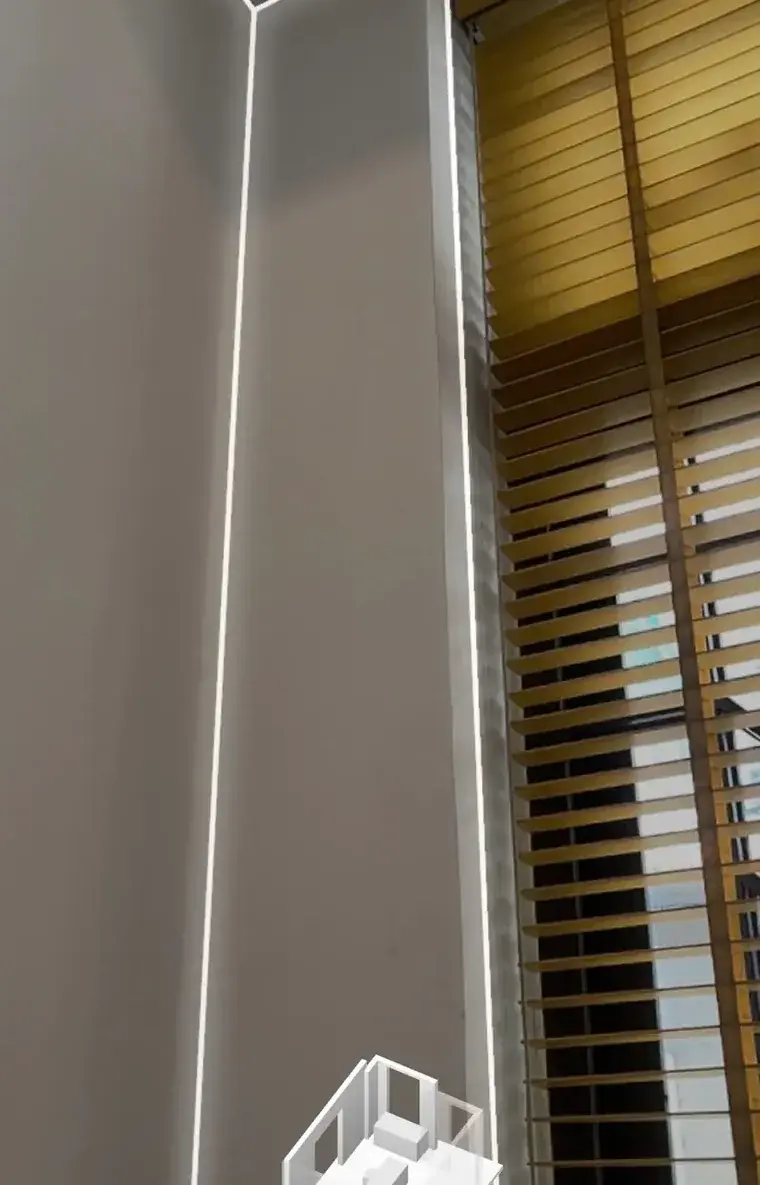
Walk slowly, sweeping along the base and top of each wall and across every door and window frame. A glowing outline following the wall edge shows the device has captured it.
- Scan the whole home in one pass
Move through the rooms in one loop, without locking the screen or covering the camera. At each doorway, scan the frame before stepping through.
- Finish and view in 3D
When you have covered the home, tap to finish. The 3D model appears so you can rotate it and check that every room and door is there.
- Tap 2D for the floor plan
Tap 2D to go straight to the floor plan in the editor; angled walls stay angled, and doors and windows sit on their walls.
- Save, set polarity and check
When you are happy, save it to a project — tokens are used only at that point. Enter the facing degree, set polarity and check feng shui.
Common mistakes
- Walking fast or swinging the phone — the device loses track and you must scan again.
- Poor light, or a finger over the camera.
- Standing in the middle of a room and panning instead of walking along the walls — not enough walls are captured to build the plan.
- Pointing for long at mirrors, large glass or glossy surfaces — they are easily mistaken for walls.
- Trying to scan a very large home in one pass beyond the device's limit — scan one floor at a time instead.
Do it in Home Check
- Tap “Digitize”, then “LiDAR scan”.
- Home Check builds a 3D model from the scan for you to rotate; tap 2D to open the floor plan straight in the editor, with angled walls kept.
- If a scan fails, the app says why — moving too fast, poor light, not enough walls, area too large — and lets you scan again; if you cancel midway, nothing is saved.
- Scanning uses no tokens; tokens are used only when you save the plan to a project — pay for what you use.
Questions
Which devices can scan with LiDAR?
iPhone Pro and Pro Max from the 12 Pro onwards, and iPad Pro models with a LiDAR sensor. Other devices can still digitize from a plan photo or with a Bluetooth laser meter.
Room by room, or the whole home?
The whole home in one pass: walk through the rooms continuously and the plan comes out in one go, with no stitching. If the area exceeds the device's limit, the app tells you so you can scan one floor at a time.
What about angled walls and corners that are not square?
The plan keeps the true shape: angled walls stay angled, and doors and windows sit right on the walls — so the house centre and polarity follow the real shape.
Does a LiDAR scan use tokens?
Scanning uses no tokens. Tokens are used only when you save the plan to a project, as with any plan.
What if a scan fails?
The app tells you why — moving too fast, poor light, not enough walls or an area too large. Tap “Scan again”, walk more slowly, keep it well lit and scan in one continuous pass.
Do this for your own home in the app
Scan with your phone to get Home Check.
You are viewing this page inside another app. Tap ⋯ and choose “Open in browser” to get the app.
Markdown version of this page Index for machine readers (llms.txt)